

Data access modes
Metadata-only mode (default):- Agents can see your data structure, field names, and model definitions
- They can generate appropriate queries and visualizations
- No actual data values (except for one-row query results) are shared with the agent
- Perfect for exploring data structure and creating initial analyses
- Agents receive actual query results in addition to metadata
- Can provide specific insights, identify trends, and analyze patterns in your data
- Offers detailed summaries and data-driven recommendations
- Can search for actual field values to ensure accurate filters when building visualizations
- Only shares data when explicitly enabled per agent
Data access is optional and controlled per agent. When disabled, agents only
work with your data model structure and cannot see actual data values. This
ensures sensitive information is only shared when you explicitly choose to
enable this capability.
How to enable data access
How to enable data access
To enable data access, go to your agent settings and toggle the “Data Access”
option.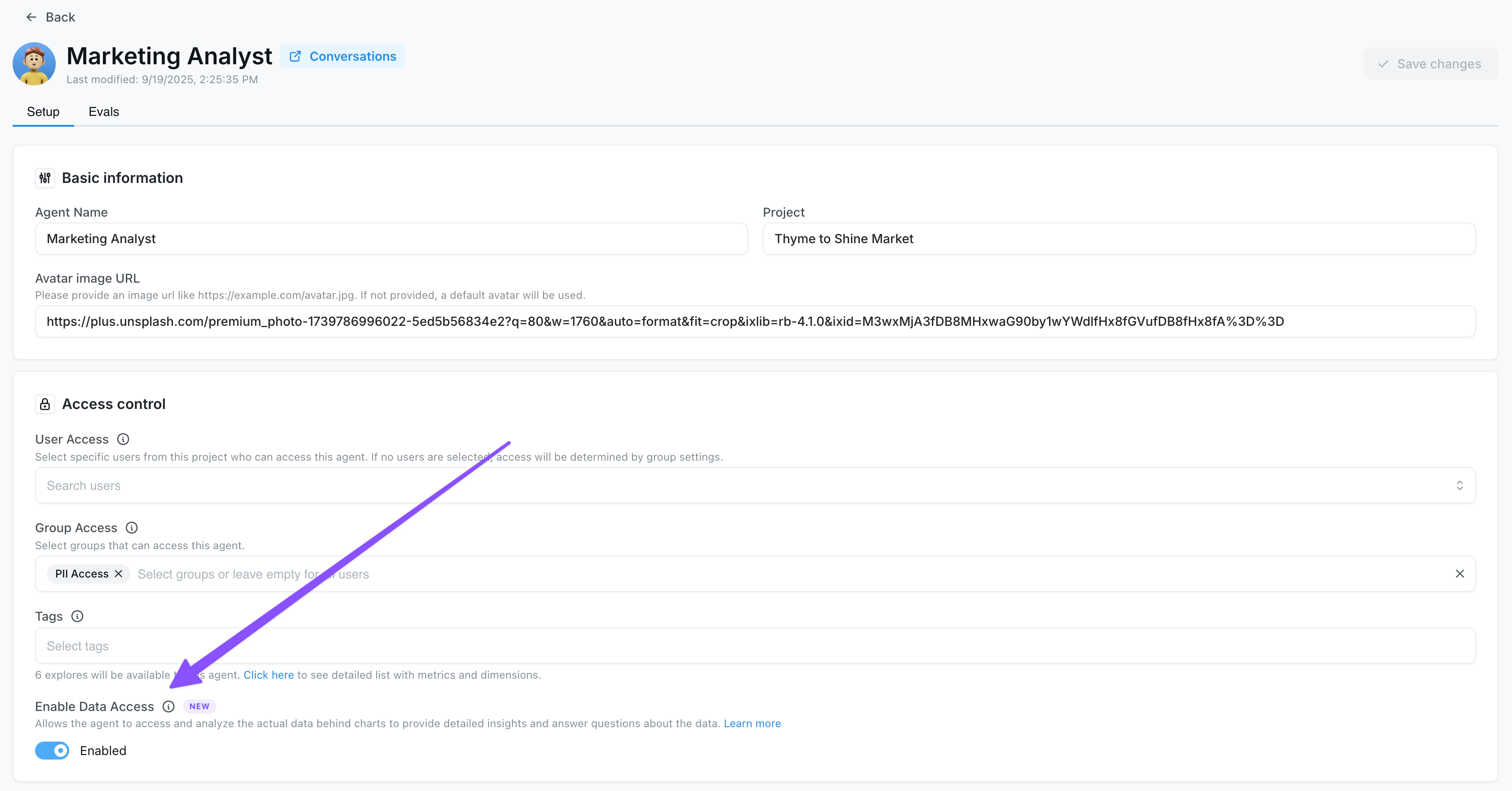
User attributes and permissions
AI agents automatically respect all data access controls configured through user attributes. This ensures that agents only access data that the user is authorized to see, maintaining your existing security policies.How user attributes flow through AI queries
When an AI agent generates and executes queries on behalf of a user, it inherits that user’s attribute values and applies them to all data access: Row-level security:- Agents automatically apply
sql_filterrules defined in your models - Only rows matching the user’s attribute values are included in query results
- Example: If a user has
sales_region: 'EMEA', the agent will only query data for that region
- Agents respect
required_attributeson dimensions - Columns the user cannot access are invisible to the agent
- Metrics derived from restricted columns are also unavailable
- Example: If
salaryrequiresis_admin: 'true', non-admin users’ agents cannot query salary data
- Agents respect
required_attributeson models - Tables the user cannot access are completely hidden from the agent
- The agent cannot reference or join restricted tables
- Example: If
paymentsrequiresis_admin: 'true', non-admin users’ agents cannot query the payments table
Default behavior
In the Lightdash app: AI agents automatically use the logged-in user’s attributes for all queries.In Slack: AI agents currently use the attributes of the user who created the agent. We plan to respect user attributes based on Slack user email in the future—reach out if you need this feature!
How this works behind the scenes
When an agent generates a query:- The agent receives the user’s complete attribute profile (both direct user attributes and group attributes)
- All
sql_filterrules are automatically applied to the generated SQL - Dimensions and tables with
required_attributesare filtered from the available schema - The agent only sees and can query data within the user’s permissions
Example: Regional sales access
Consider this model configuration:sales_region: 'EMEA' and no can_view_pii attribute:
- The agent can query
revenuedata, but only for EMEA region - The agent cannot see or query
customer_name(PII restriction) - If the agent tries to analyze customer names, it will fail with a permissions error
- All generated queries automatically include
WHERE region IN ('EMEA')
Security considerations
- Metadata mode: Even in metadata-only mode, agents respect user attributes when showing available fields
- Data access mode: When data access is enabled, query results are filtered by user attributes
- Query generation: Agents cannot generate queries that bypass user attribute restrictions
- Error handling: If an agent attempts to access restricted data, the query fails with a permissions error